
Micro Cheatsheet
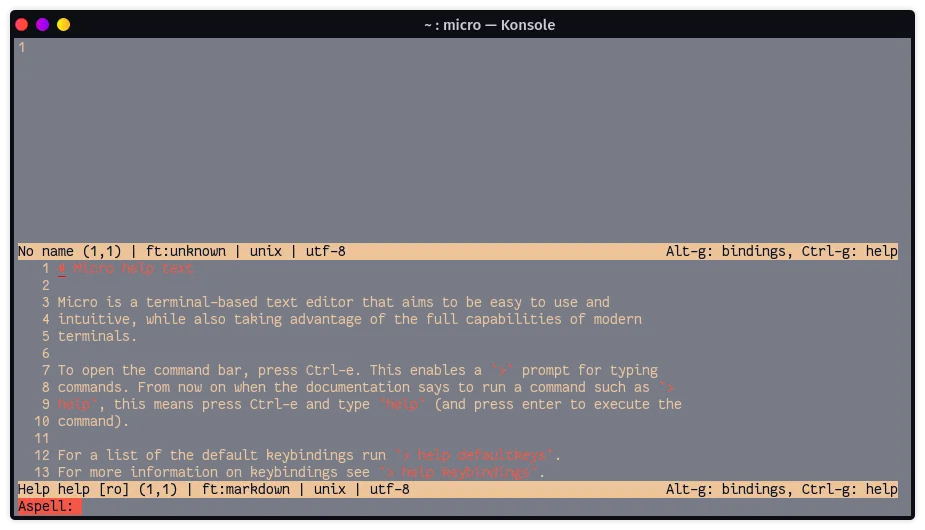
Micro is the default text editor of Garuda Linux. Unlike most of the distributions that provide vi or nano as default text editor, Garuda Linux ships micro because it is very user friendly, intuitive, has a beautiful UI and is easy to configure.
Cursor movement
Section titled “Cursor movement”| Action | Keybinding |
|---|---|
| Move cursor | |
| Move lines up or down | |
| Start of line | |
| End of line | |
| Start of file | |
| End of file | |
| Previous or next paragraph | |
| Page up or down | |
| Go to line |
Selection
Section titled “Selection”| Action | Keybinding |
|---|---|
| Select text | |
| Select word left or right | |
| Select to start of line | |
| Select to end of line | |
| Select to start of file | |
| Select to end of file | |
| Select all | |
| Multi-cursor |
Editing
Section titled “Editing”| Action | Keybinding |
|---|---|
| New line | |
| Indent or autocomplete | |
| Outdent | |
| Backspace | |
| Delete word left | |
| Delete | |
| Toggle overwrite mode | |
| Cut | |
| Cut line | |
| Copy | |
| Copy line | |
| Paste | |
| Duplicate line | |
| Undo | |
| Redo | |
| Record or play macro |
Files and tabs
Section titled “Files and tabs”| Action | Keybinding |
|---|---|
| Open file | |
| Save | |
| Quit | |
| New tab | |
| Previous or next tab | |
| Switch split |
Search
Section titled “Search”| Action | Keybinding |
|---|---|
| Find | |
| Find next | |
| Find previous |
| Action | Keybinding |
|---|---|
| Toggle help | |
| Toggle key menu | |
| Toggle ruler | |
| Command mode | |
| Shell mode | |
| Scroll | Mouse wheel |
Micro has many features that the tables above do not cover.
Command bar
Section titled “Command bar”Press help commands for the full list.
| Command | Purpose |
|---|---|
save [filename] | Save as a new file. Without a name it works like |
replace foo bar [flags] | Replace foo with bar. -a replaces all, -l searches literally. |
replaceall foo bar | Same as replace foo bar -a. |
goto 123 | Jump to line 123. A negative number counts from the end, so goto -10 is ten lines from the end. |
vsplit [filename] | Split the window vertically, optionally with a file. |
hsplit [filename] | Split the window horizontally, optionally with a file. |
tab [filename] | Open a file in a new tab. |
term [command] | Open a terminal inside Micro and run a command. Combine it with vsplit or hsplit. |
Options
Section titled “Options”Options change how Micro behaves. Use set to save a value to settings.json, setlocal to change it only for the current file, and show to print the current value.
set ruler falsesetlocal ruler falseshow rulerUseful options:
| Option | Effect |
|---|---|
autosave=X | Save the file every X seconds. The default 0 turns it off. |
autosu | Use sudo automatically when saving a file that needs root rights. |
backup | Keep backups of open buffers. Reopen the file to restore unsaved changes after a crash. |
clipboard | external uses the desktop clipboard (default). terminal also works over SSH. internal is Micro only. |
softwrap | Wrap long lines at the edge of the window. Use wordwrap with it to wrap by word. |
autoindent | Keep the indentation of the previous line on a new line. |
Run help options in the command bar for the full list.
Settings and key bindings
Section titled “Settings and key bindings”Your changes live in two JSON files in ~/.config/micro/:
settings.jsonfor options. Only add values that differ from the default.bindings.jsonfor key bindings.
{ "ruler": false}To change a key binding, use the bind command in the command bar. It writes to bindings.json for you. Capitalization matters, so use the names from help keybindings.
bind Ctrl-v Copybind Ctrl-c Pastebind CtrlMouseLeft SelectLineMulti-cursor
Section titled “Multi-cursor”The cheatsheet lists
| Keys | Purpose |
|---|---|
| Add a cursor on the next match of the selection | |
| Add a cursor on the line above or below | |
| Add a cursor at the start of every line in the selection | |
| Skip the current match | |
| Remove the last cursor | |
| Remove all cursors |
Commenting lines
Section titled “Commenting lines”The default comment plugin toggles comments on the selected lines with comment in the command bar. Set the comment style with set commenttype "// %s", or use setlocal for one file.
Plugins and color schemes
Section titled “Plugins and color schemes”Micro has a plugin manager in the command bar:
plugin listshows installed plugins.plugin search foobarsearches the official channel.plugin install foo,plugin remove fooandplugin updatemanage plugins.
Change the color scheme with set colorscheme gotham. Custom color schemes go into ~/.config/micro/colorschemes/. Copy a file from runtime/colorschemes in the Micro sources as a starting point.
Source: Mastering the Micro text editor on the Garuda forum.