Dr460nized Latte dock migration info
This article provides some insight into the current Dr460nized migration, which replaces the previous Latte-Dock layout with regular Plasma panels.
The main reason for this change is that the unmaintained Latte-Dock starts to become incompatible with KDE Plasma 5.27 in various aspects. Latte-Dock has not been updated in ages due to being EOL. Therefore a complete theme overhaul that tries to stay faithful to the original has been released and needs to be applied to keep your system working as intended. Our Garuda System Maintenance application tries to detect current Latte-Dock setups, offering easy migration to the new Plasma panel layout.
Upon confirming the migration, previous configuration files are renamed to *.bak, in case you want to revert the changes. Otherwise, the migration can be started by accessing the tray menu of garuda-system-maintenance.
What are the major changes?
Section titled “What are the major changes?”- Since Plasma panels don’t provide such a feature, the top bar can’t be dragged to move windows anymore. Instead, it can be double-clicked to minimize or maximize the current window. Using the meta key while dragging the window itself could also be a workaround.
- The top bar won’t become translucent anymore if no window touches it. Instead, it becomes slightly less opaque, but remains blurry, still letting see through, although not as radical as full translucency.
- The dock is static and doesn’t zoom on hover. This is by Plasma design. Instead, we made use of a brand new Plasma panel feature, which provides a background for the currently hovered icon.
- Along with the removed features, the layout will certainly become quicker to launch at login, as well as quicker to interact with and less prone to random bugs, which is certainly a good thing!
Depending on individual workflows, there might be other functionalities missing. We tried our best to retain the typical dr460nized theme while using Plasma panels as the base.
How to perform the migration?
Section titled “How to perform the migration?”Via Garuda System Maintenance
Section titled “Via Garuda System Maintenance”There are two ways of applying the migration:
- Accepting the automatic migration prompt: The application will try to detect existing Latte-Dock setups, offering to migrate to the new layout. Here, you just need to confirm the prompt and relog afterwards. This might not be applicable depending on the changes made to out of the box theming.
- Triggering the migration manually: head over to the system tray, find the System Maintenance icon and right-click it. Then select “Dr460nized migration” and relog (no need to reboot) after it finishes the process.
Doing it manually
Section titled “Doing it manually”-
Make sure you have the package garuda-dr460nized installed.
-
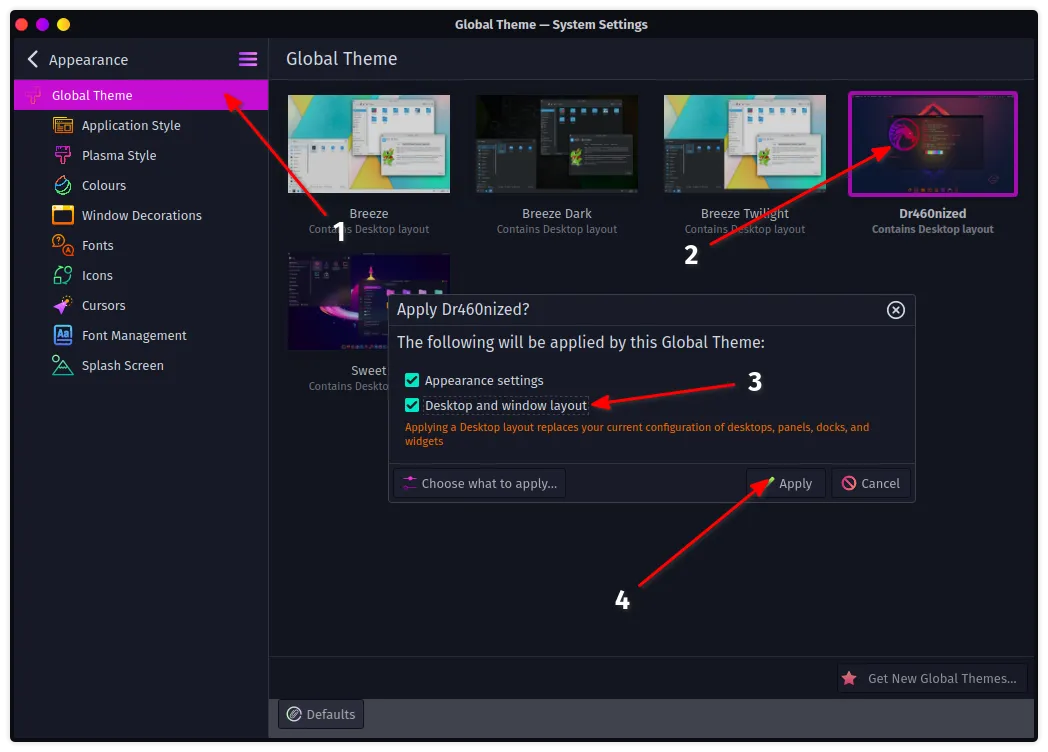
Head over to the Plasma System Settings and apply the new Global theme from the appearance menu:
-
Remove Latte-Dock from your system:
Terminal window sudo pacman -Rns latte-dock -
Relog (no need to reboot)
Meta (super) key binding to launch Application Launcher
Section titled “Meta (super) key binding to launch Application Launcher”If you used the
Remove the section
Section titled “Remove the section”-
Go in
~/.config/kwinrc -
Remove the following section
~/.config/kwinrc [ModifierOnlyShortcuts]Meta=org.kde.lattedock,/Latte,org.kde.LatteDock,activateLauncherMenu -
Logout and log back in
Replace lattedock with plasmashell
Section titled “Replace lattedock with plasmashell”OR you can keep the section, then you have to replace lattedock with plasmashell
-
Go in
~/.config/kwinrc -
Edit the same section as above for the following
~/.config/kwinrc [ModifierOnlyShortcuts]Meta=org.kde.plasmashell,/PlasmaShell,org.kde.PlasmaShell,activateLauncherMenu -
Logout and log back in
What about multi-monitor setups?
Section titled “What about multi-monitor setups?”By default, the new Dr460nized global theme does only apply to the primary monitor, while Latte was configured to display the same panels on all monitors by default. However, the top panel / top bar can easily be added to other monitors by right-clicking the desktop and selecting Add panel -> Garuda default dock/panel. You can even configure yourself a different Panel and Dock for each of your monitors.
Is it optional?
Section titled “Is it optional?”While we don’t force the migration, it is strongly suggested to apply the changes. After all, Latte-Dock will become unstable or useless sooner or later due to missing a dedicated maintainer. Applying the migration now saves you precious time spent wondering why the dock suddenly doesn’t show any icons anymore.
What does it look like?
Section titled “What does it look like?”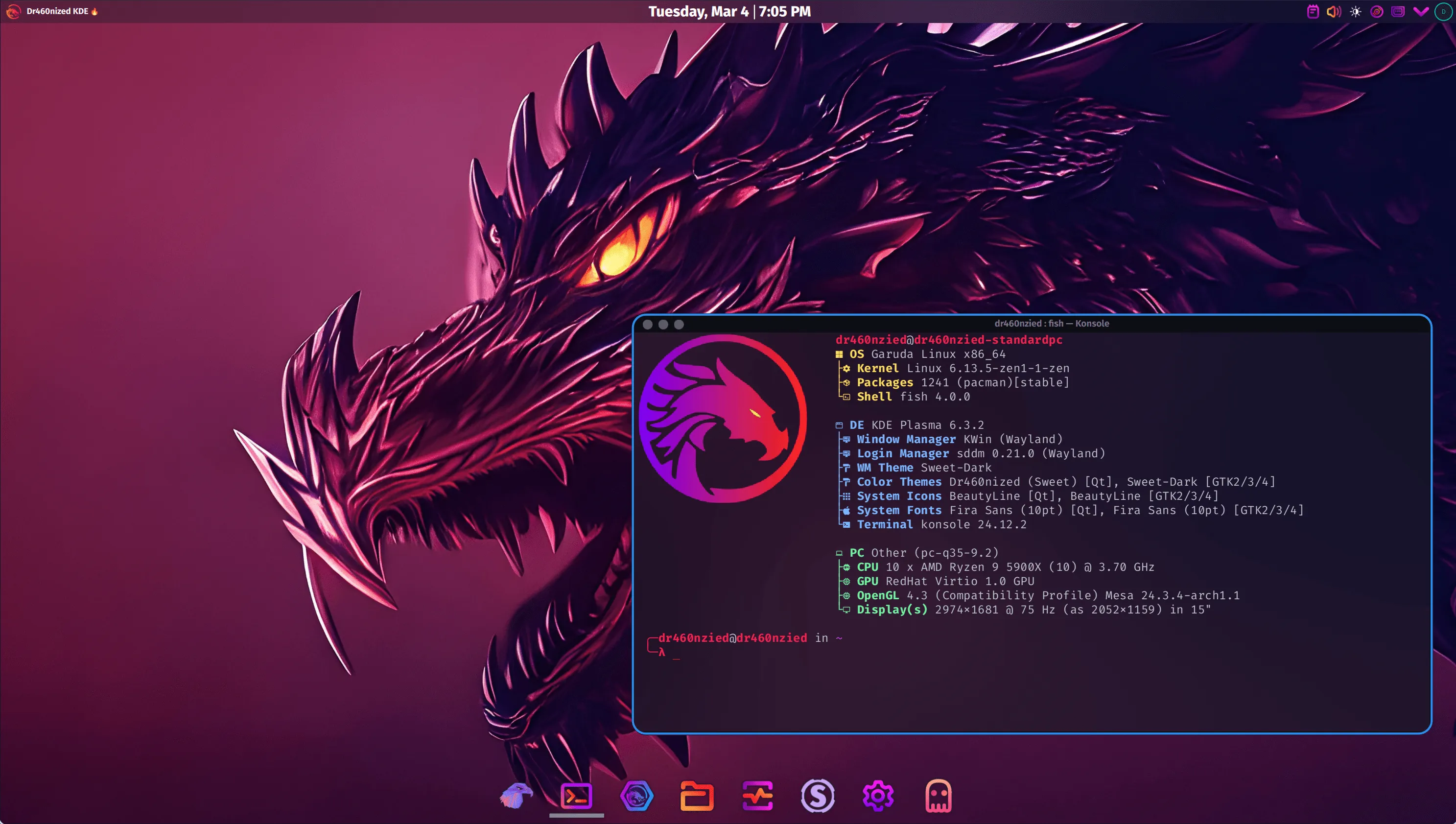
What about High Resolution monitors?
Section titled “What about High Resolution monitors?”On average vertical resolution sizes (1080, 1440), the visual result is most of the time as shown above. On higher resolution screens, like 2160, both the Dock and Top Panel will have the tendency to look smaller. This is due to the way Plasma handles calculating the grid unit vs the physical monitor size and applies a constant to render the end result. If you feel the look is a little too small (or too big!), you can easily change the size of both Panel/Dock or just one if need be.
When changing the size of the Dock, it is normal to not see the icons scale for every number change. Plasma only applies a change in size after a certain number. That is by Plasma design. Those numbers vary depending on your resolution.