
Basic steps to privacy on Garuda Linux
Nowadays there are lots of things to consider when talking about “privacy”. Ditching Windows for a Linux-based system is the first step to take!
If you absolutely can’t leave Windows because you require it for work for example there are still some things you can do - installing Windows AME for example (removing all Windows bullshit to take back control!). But in this article, we will focus on Garuda Linux-specific things of course.
For more in-depth articles on different topics, the corresponding Arch wiki pages will be linked. Even more content can be found at privacytools.io :)
Installing and enabling the firewall
Section titled “Installing and enabling the firewall”A firewall is needed to stop people abusing open ports which can lead to them having full device access for example. The KDE editions (Dr460nized, Dr460nized Gaming and Mokka) ship firewalld. It can be enabled via systemd:
sudo systemctl enable --now firewalldThe Cinnamon, Hyprland and i3 editions ship ufw instead:
sudo systemctl enable --now ufw && sudo ufw enable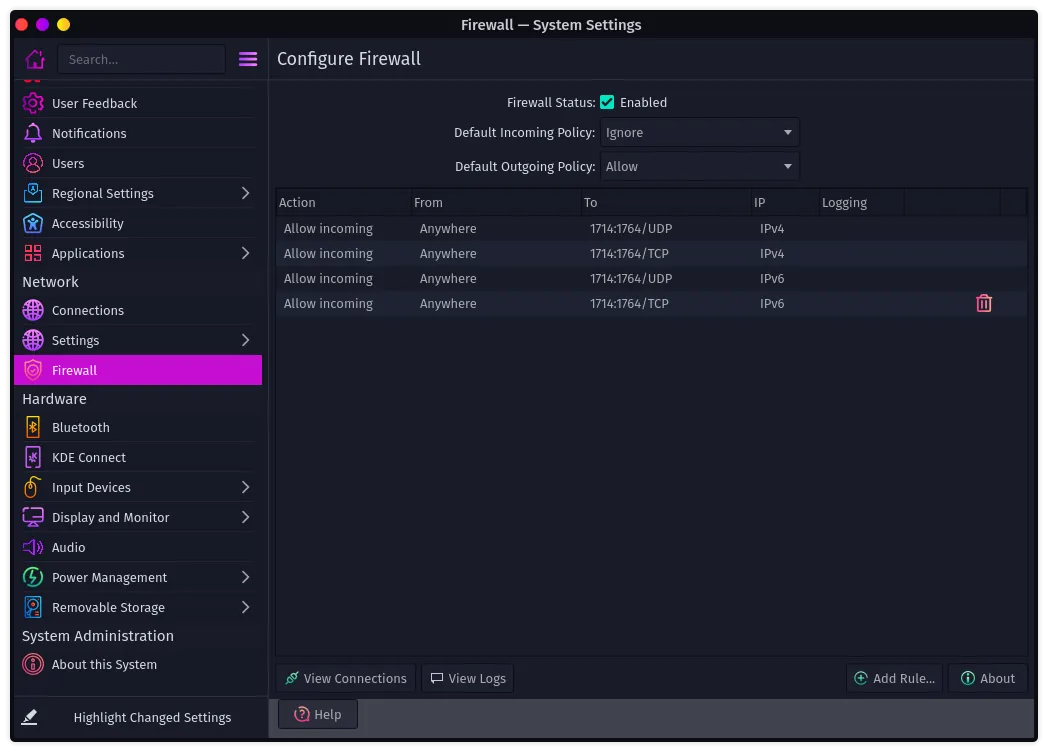
Allowing services through the firewall
Section titled “Allowing services through the firewall”An important thing to notice is that services such as KDE Connect or Syncthing will need firewall rules to work as expected as their incoming traffic will be blocked by the firewall as well.
To achieve that open up the Firewall application from the start menu. KDE ships an application for this purpose, other editions will have to install Gufw if they want to operate the firewall via GUI. Otherwise, it is quite easy to do via the command line. With firewalld:
# allows ssh in the default zonesudo firewall-cmd --permanent --add-service=sshsudo firewall-cmd --reloadWith ufw:
# denies every incoming request by defaultsudo ufw default deny# allows sshsudo ufw allow sshMore on this topic can be found here.
Using alternative DNS servers to block ads and/or analytics
Section titled “Using alternative DNS servers to block ads and/or analytics”Using DNS servers is a very easy way to block ads and unblock censorship by internet providers. Garuda Toolbox can set Google, Cloudflare or Quad9 as the default DNS provider under System settings > Set default DNS.
Blocking domains locally
Section titled “Blocking domains locally”As a bonus hblock could be used. It blocks ads and malware domains using the /etc/hosts file which blocks the domains locally rather than via a DNS server. It can be turned on in Garuda Toolbox under System settings > Enable Hblock. ArcoLinux got some more information on this topic.
Also, you can modify your /etc/hosts file yourself by using this database with the most spooky sites including ads, tracking, porn, fake news and gambling. You can choose what you want to block.
Using the right browser
Section titled “Using the right browser”The browser is kind of the middleman between you and the internet while being able to log every action you take. That’s why you should choose carefully here. There are lots of web browsers available so choosing the right one might be a confusing task.
Firefox-based browsers
Section titled “Firefox-based browsers”Generally speaking, Firefox-based browsers are likely the best choice among these nowadays. It’s backed by the Mozilla foundation which has a quite good reputation and is easily expandable by add-ons.
Chromium-based browsers
Section titled “Chromium-based browsers”The other “big” player is Chromium - there are a lot of browsers based on chromium such as Google Chrome or the Brave browser. While the engine Chromium uses still seems to be quicker than Firefox these days it is associated with Google - a company known for massive privacy concerns.
A project which tries to cut Google out of Chromium is Ungoogled Chromium. If you want to use the Chromium engine, this browser will most likely be the best bet. Since most Google stuff doesn’t exist in this browser you will need this extension to install add-ons from the Web store without other workarounds.
FireDragon and other options
Section titled “FireDragon and other options”It is worth noting that we ship the privacy-respecting FireDragon browser, based on Firefox, by default in Garuda.
Also, an interesting option would be to choose a Web Browser. Yeah, that’s not a really convenient name. It’s based on Pale Moon, which is based on an old branch of Firefox. But it lacks support for modern extensions, even though it presents some other obscure ones.
Using the right browser addons
Section titled “Using the right browser addons”Browser add-ons are important and needed these days to have a good experience browsing the internet.
- uBlock Origin. This one is needed to block Ads and malicious domains. If you are asking yourself why we will need this if eventually changed DNS is basically doing the same - uBlock is able to block the ads at the website level which means you won’t see white spaces - it’s just like the ad didn’t exist. Don’t use other “adblock” add-ons. uBlock Origin can be trusted since it’s open source.
- HTTPS everywhere. This add-on ensures always using HTTPS connections when browsing the internet. This means that all traffic will be encrypted, otherwise people can easily read everything you are sending and receiving. In Firefox 83+ this feature has been natively implemented but needs to be enabled manually.
- LocalCDN. LocalCDN is a web browser extension that emulates Content Delivery Networks to improve your online privacy. It intercepts the traffic, finds supported resources locally, and injects them into the environment. It works well with uBlock Origin and is able to generate rules for this add-on which you should do, just follow its FAQ.
- CanvasBlocker. Browser fingerprinting is quite a problem since it allows companies to identify you even if a VPN service is used due to its unique fingerprint. CanvasBlocker emulates different APIs to protect your data.
- NoScript. Although most people don’t use this add-on because it breaks most websites by design. It’s blocking the use of JavaScript - which most of the content relies on these days. But this means that tracking technologies also won’t work for example. The use of this add-on needs manual adjustments to allow/disallow contents to be truly usable.
- ClearURL’s. It clears all the URLs that you visit from garbage information. Plain and simple.
Using secure passwords
Section titled “Using secure passwords”Talking about this topic is important - most people use very easy passwords for their accounts which can be easily brute-forced by other people to gain access. Passwords like name1959, password, easy123, and so on fall into this category. You can check here if the password used is secure. Using the same password for every account should also be avoided!
Using a password manager
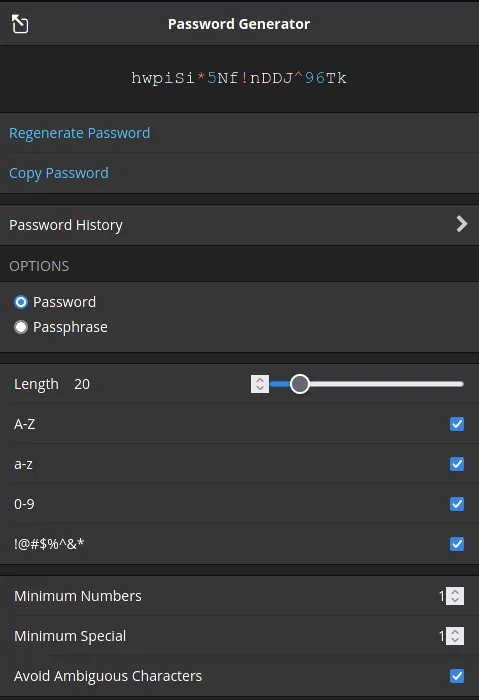
Section titled “Using a password manager”The best way to generate and save passwords is using a password manager such as Bitwarden. Bitwarden is open source so it can be trusted. You can even self-host your own instance.
We provide a self-hosted instance that you can use along with its Firefox add-on. Just change the server used to “vault.garudalinux.org” and create an account. It also has a mobile client which is very easy to use! Using 3+ different kinds of characters and 14+ characters should be secure enough.
Using the right search engines
Section titled “Using the right search engines”Search engines should be chosen carefully. Google, Bing, or Yahoo should be avoided these days. Recommended alternatives are for example DuckDuckGo, Startpage.com, or Searx. We host a variant of Searx and Whoogle (a meta-search using Google search results without tracking the user) for you to use.
One of these should be set as a default search engine in your favorite browser. This can be done via browser settings.