Dr460nized Plasma 6 migration (Legacy, deprecated 2025-01-01)
This wiki article provides insight into the currently required manual intervention, caused by the KDE Plasma 6 megarelease.
Manual intervention is required because starting with KDE 6, Plasmoids, Global Themes, and SDDM Themes need to be ported to the new desktop environment. There will be a few changes regarding the Dr460nized desktop to embrace those changes. While the overall desktop aesthetics stay roughly the same, a few features will return at a later date once they have been implemented upstream.
Garuda System Maintenance will help apply the needed migration, providing a popup window to complete the action once the necessary conditions exist.
What are the major differences?
Section titled “What are the major differences?”- Of course, all the latest and greatest changes KDE 6 brings to us, like:
- Wayland as the default session
- System tray icons are sourced from the current System Icons theme instead of shipping custom ones or defaulting to Breeze’s.
- Partial HDR support
- A new sound theme called “Ocean”
- Floating Panels and improved configuration
- New Overview effects and some others
- The Desktop Cube is brought back!
- Almost flawless Touchpad gestures
- Much less buggy environment
- No blur behind application windows for now - likely returns as soon as Kvantum is compiled against KDE 6 lib. We ship a custom Sweet theme which has translucent effects disabled until this is in Arch repos.
- Can’t double click app menu bar to toggle maximize - we no longer use the Window App Menu plasmoid but KDE’s native Global app menu. This option isn’t present here, as many other configurations of Window App Menu had.
- The default SDDM Theme is now based on Breeze. We simply called it “Dr460nized”. The previous Dr460nized-Sugar-Candy is still available and seems to work, but it has not been ported and may misbehave with time.
We tried to minimize impacts on theming. Here’s what the Dr460nized Theme looks like in Plasma 6 (1920x1080 resolution). Pretty much the same as before :)
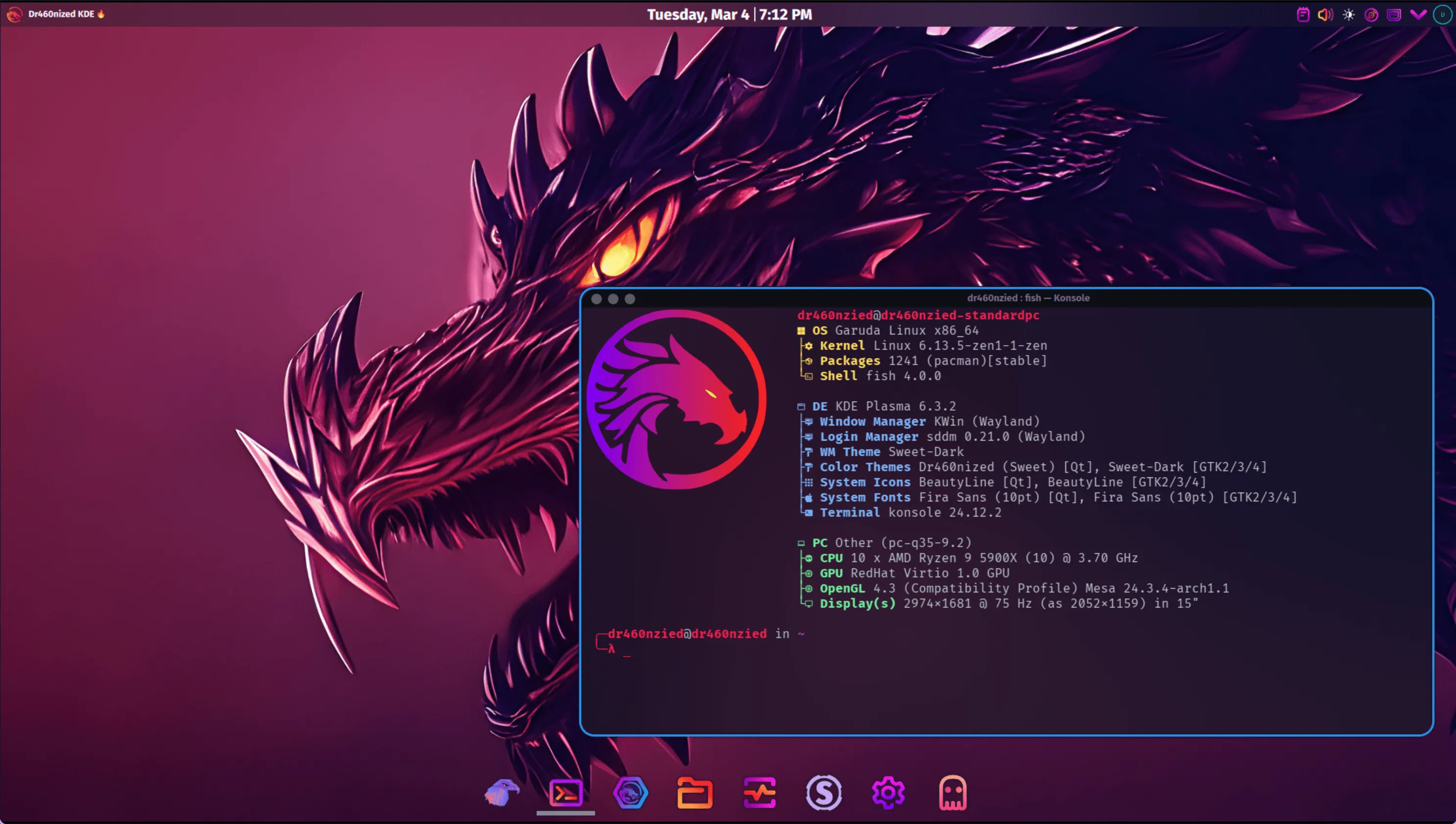
The result may vary depending on the monitor resolution you are running at. For example, the bigger your resolution, the smaller the Digital Clock’s fonts will be and the bigger the bottom Dock will be. Of course, both are easily adjustable, there is no need to freak out if you see that. :)
How to perform migration?
Section titled “How to perform migration?”This is one of the times when Garuda System Maintenance shines. Of course, it can be done manually as well.
Via Garuda System Maintenance
Section titled “Via Garuda System Maintenance”There are two ways of applying the migration after your initial Plasma 6 boot:
Accepting the automatic migration prompt
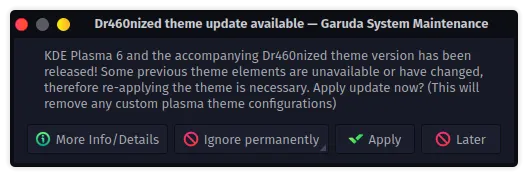
Section titled “Accepting the automatic migration prompt”The application will try to detect existing KDE 6 setups with garuda-dr460nized>=4.0.0-1 packages, offering the migration to the new layout. Here, you just need to confirm the prompt. This might not be applicable depending on the changes made to out-of-the-box theming.
When applicable, it will reset the theme configuration to the current Dr460nized Plasma 6 theme. It is always a good practice to at minimum log out and re-log in to the desktop.
Triggering the migration manually
Section titled “Triggering the migration manually”-
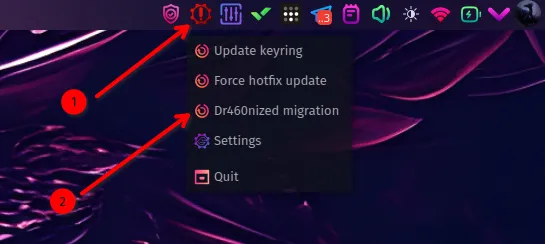
Head over to the system tray, find the System Maintenance icon, and right-click it.
-
Then select “Dr460nized migration” to execute the needed action. Yet again, this will reset the theme configuration to the current Dr460nized Plasma 6 theme.
-
It is always a good practice to at minimum log out and re-log in to the desktop.
Manually
Section titled “Manually”This can be done by opening Konsole (or another terminal emulator of choice) and running the following:
lookandfeeltool --resetLayout --apply Dr460nizedThis will apply the “Dr460nized” global layout, resetting the layout back to the updated one shipped in garuda-dr460nized>=4.0.0-1, even if you run a fully custom theme. It is always a good practice to at minimum log out and re-log in to the desktop.
Later additions
Section titled “Later additions”Later in the Plasma 6 era we added some UI changes.
Outline window border colors
Section titled “Outline window border colors”One of them is the outline window border colors.
-
You need to install
kwin-effect-rounded-corners-gitpackage. -
Then you open System Settings, Window Management, Desktop Effects and find Rounded-Corners.
-
Replicate the below:
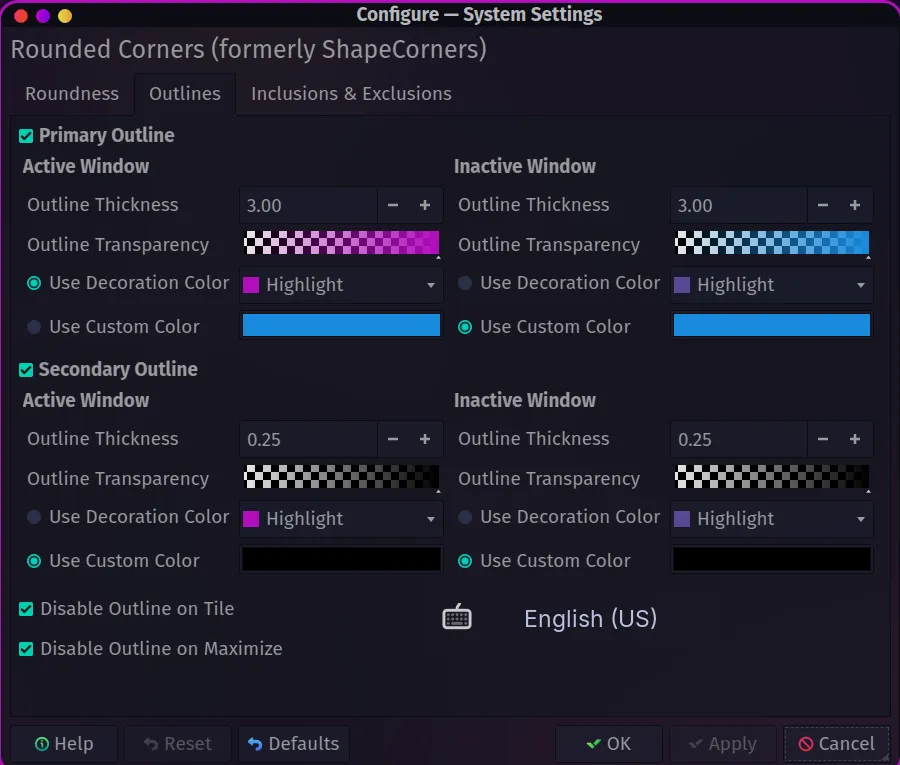
The blue color is #1d99f3.